CourtReserve help articles read October 21, 2026
How to Switch From CourtReserve
CourtReserve has no direct connection to Sports Booking Management, and we have no automatic importer for its files. What it does have is reports you can export to Excel. Here is how to get your reservations and members out, taken from CourtReserve’s own help centre, and how to set your courts up on our side.
Step 1: export from CourtReserve
These steps come from CourtReserve's own help centre, linked under each one. Menus change; the linked article is the latest word.
Your reservations
- Log in to the CourtReserve admin dashboard.
- Click REPORTS > RESERVATIONS.
- Set the date range (use Custom for a whole season), choose courts, and tick Include Court Bookings. Tick Recurring Reservations Only if you want just the standing bookings.
- Under Setup Report Output, tick the columns you want, then click Run Report.
- In the report toolbar, click Export to Excel to download an .xlsx file.
Source: CourtReserve help: Reservations Report, read October 21, 2026.
Your members and renters
- Go to REPORTS > MEMBERS.
- Set the filters, for example Current Membership Status = Active.
- Run the report, then use Export to Excel.
Source: CourtReserve help: Members Report, read October 21, 2026.
Step 2: set up Sports Booking Management
There is no automatic importer for CourtReserve files, so this part is setup, not import. Send your export to support and we help with it. Screenshots are from our product with demo data.
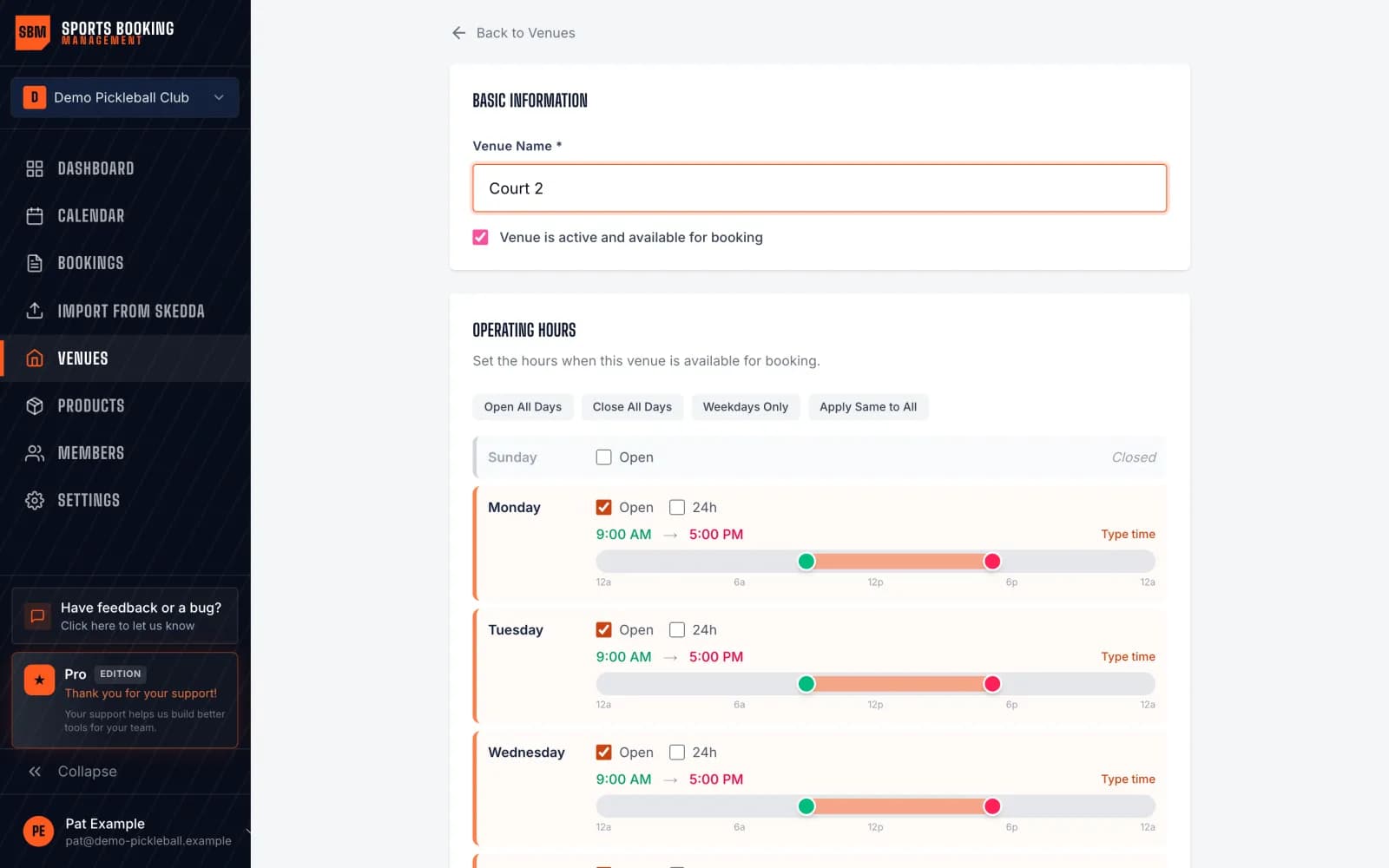
1. Add your venues and courts
Create a venue for each site and add every court, field or space as it really is. There is no court limit, so you never have to merge courts to fit a plan.
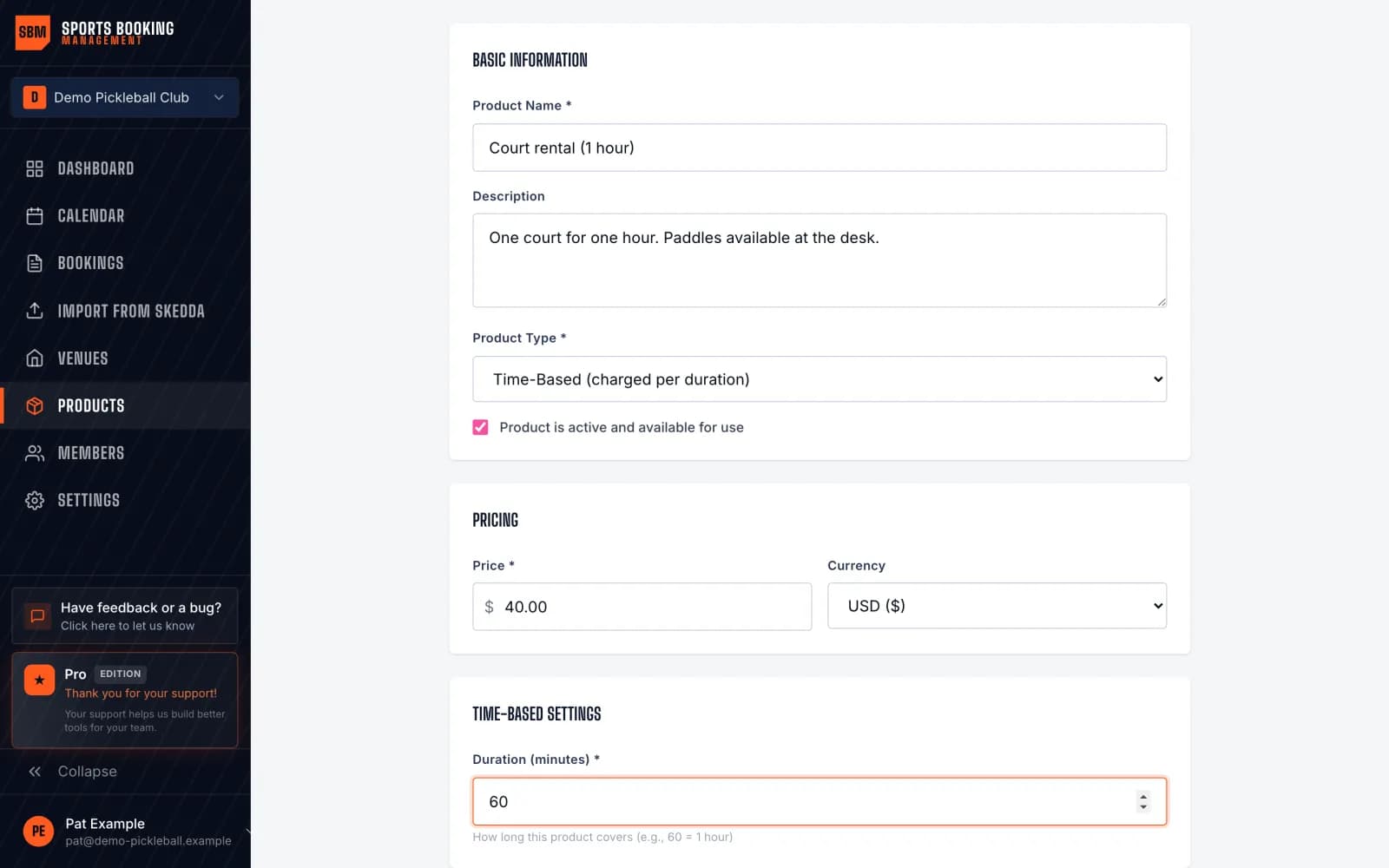
2. Set your rental rates
Add a time-based product for each rate, such as a one-hour court rental, and attach it to the spaces it applies to. Bookings are charged by length.
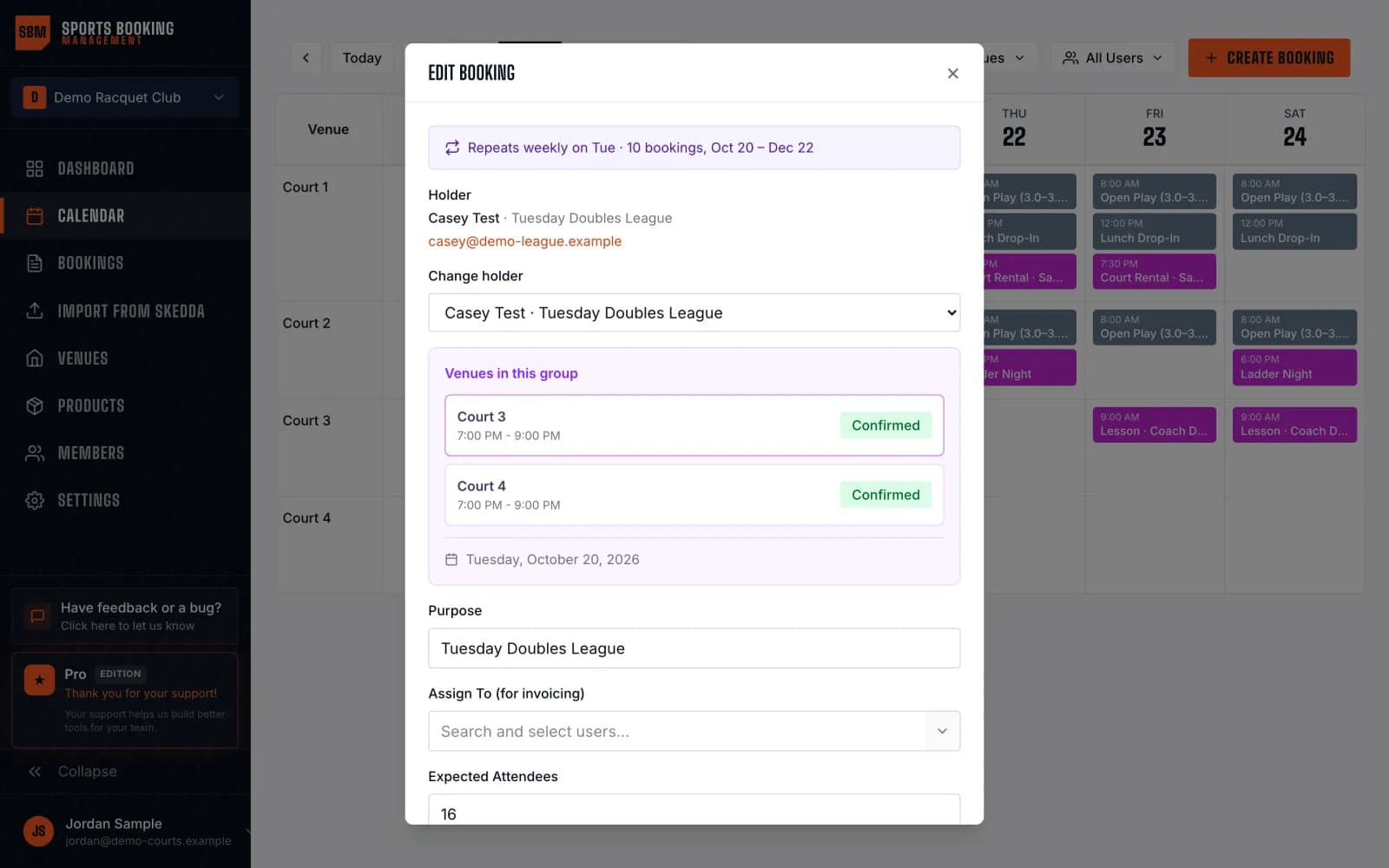
3. Recreate standing bookings as recurring series
Use the rows from your reservations export to rebuild each weekly league or lesson slot as one recurring series, instead of retyping every date.
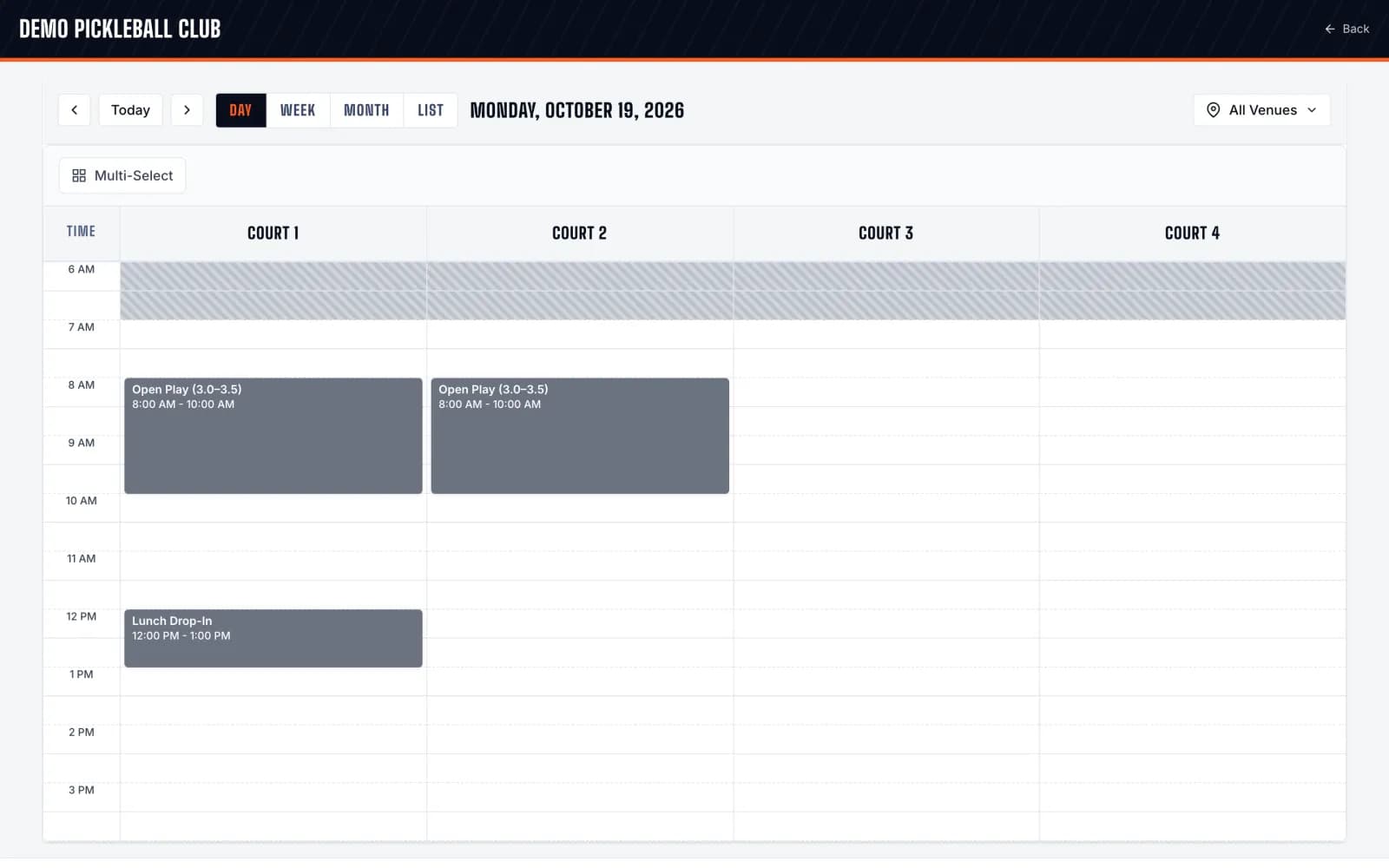
4. Open your public booking page
Share the page with your renters. They pick a time and book without creating an account, with approvals where you want them.
What stays behind
- Memberships, lessons, leagues and ladders: we do not run those, so plan where they go before you move
- Account credit and balances: settle or record them before you cancel
- Payment history: keep the CourtReserve sales and payment reports your bookkeeper needs
FAQs
Can you import a CourtReserve export automatically?
Not yet. Our self-serve importer reads Skedda files. For CourtReserve, send the reservations export to support and we help you set it up; recurring slots become recurring series.
Should we move upcoming bookings or start fresh?
Most venues open new bookings on Sports Booking Management straight away and let reservations already made run out on CourtReserve. Standing weekly bookings are worth recreating as recurring series.
What does it cost?
One flat monthly plan for unlimited courts and venues, with no paid add-ons. You can set up your courts before paying.
Leaving CourtReserve?
No card needed · Take real bookings free for 30 days · Then $79/mo if you keep it
Set up free